Unlock the Full Potential of Your Steam Deck with Decky Loader
- 15 May 2023
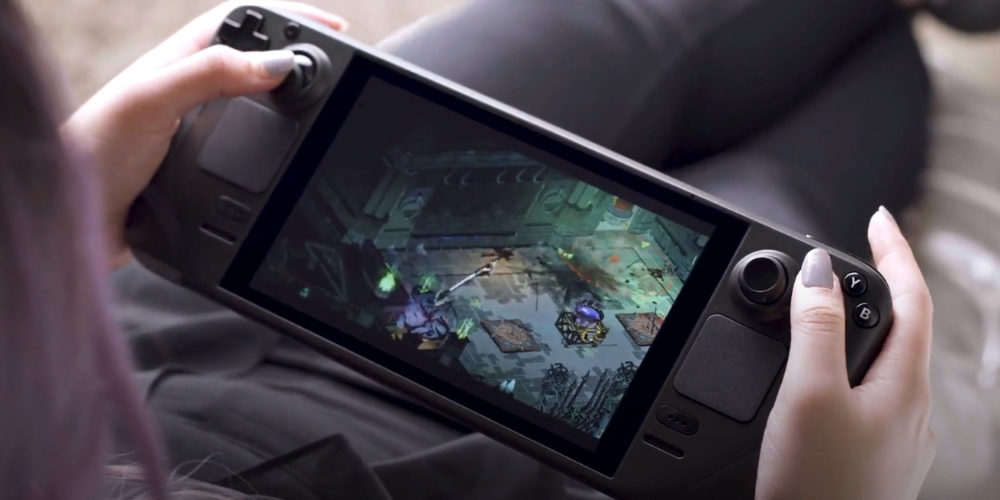
Decky Loader is a powerful homebrew application that allows Steam Deck users to enhance their gaming experience by customizing themes, start-up animations, desktop apps, emulation achievements, and more. This detailed guide will walk you through various ways to install a Decky Loader and unlock the full potential of your Steam Deck.
Before You Begin
Before diving into the installation process, ensure your Steam Deck is connected to the internet and updated to the latest version. Additionally, you may need an external keyboard and mouse during installation for easier navigation.
Method 1: Installing Decky Loader Using the On-Device Browser
- Press the Steam Button on the device's left side and select "Power."
- In the Power menu, choose "Switch to Desktop" to enter the Desktop Mode of your Steam Deck.
- Connect a keyboard and mouse using USB ports or Bluetooth connectivity.
- Launch the web browser of your choice, and visit the official Decky Loader website (https://gamerant.com/steam-deck-how-install-decky-loader-guide/).
- Scroll down to the "Download" section and click the download link to save the Decky Loader installation file.
- Locate and double-click the downloaded file in your Downloads folder to start the installation process.
- Follow the on-screen prompts to install Decky Loader on your Steam Deck.
- Once the installation is complete, switch back to Gaming Mode by clicking the "Gaming Mode" option on the desktop screen.
Method 2: Transfer Decky Loader from PC to Steam Deck
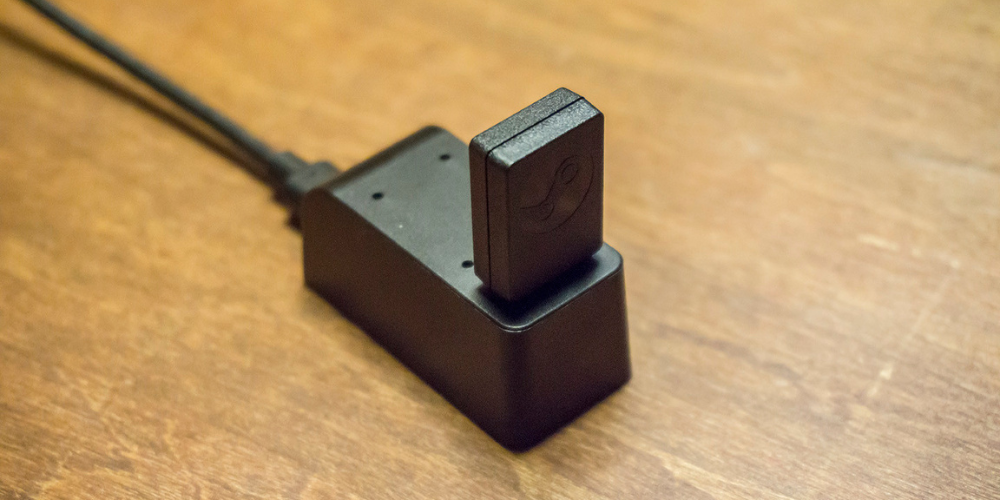
If you prefer to download the Decky Loader installer on your PC and transfer it to your Steam Deck, follow these steps:
- Using your computer, visit the official Decky Loader website (https://gamerant.com/steam-deck-how-install-decky-loader-guide/) and download the installation file.
- Connect your Steam Deck to your PC using a USB cable.
- On your PC, navigate to Steam Deck's file system and locate the "Downloads" folder.
- Copy the downloaded Decky Loader installer from your PC and paste it into the Steam Deck's "Downloads" folder.
- Disconnect your Steam Deck from your PC and switch to Desktop Mode, as explained in Method 1.
- Locate and double-click the transferred installer file in the Downloads folder to start the installation process.
- Follow the on-screen prompts to install Decky Loader on your Steam Deck.
- Once the installation is complete, switch back to Gaming Mode by clicking the "Gaming Mode" option on the desktop screen.
Exploring and Installing Decky Plugins
Now that Decky Loader is installed on your Steam Deck, it's time to enjoy its powerful features and plugins. To access the available plugins, follow these steps:
- Press the QAM button, featuring three dots, located on the right side of the console.
- Select the Plug icon to open the Decky Tools menu.
- Click the Settings cog wheel to access the settings menu and install any available updates for Decky Loader.
- To browse and install new plugins, click the Store icon next to the Settings cog.
- Select and install any plugins that you find helpful or interesting for your Steam Deck experience.
Recommended Decky Plugins
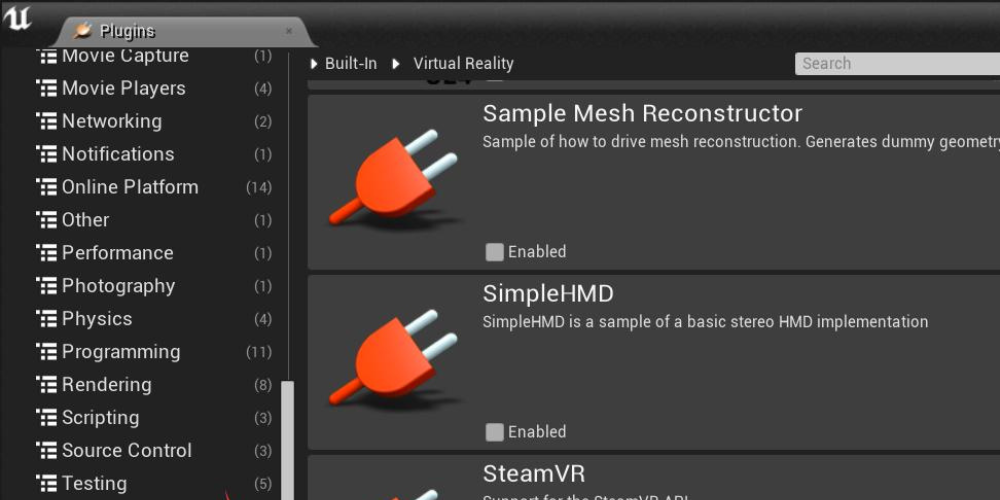
Decky Loader offers a variety of plugins to enhance your Steam Deck experience. Some of the best options available include:
- DeckSettings - Provides recommended settings for individual games on the Steam Deck.
- Decky Recorder - Allows users to record gameplay footage.
- Discord Status - Displays your current Steam Deck game in Discord.
- Free Games - Notifies users of free games available to download from the Epic Store.
- Game Theme Music - Adds a PlayStation-like feature that plays songs from the game's library.
- Vibrant Deck - Customizes the color settings of your Steam Deck interface.
By following this comprehensive guide, you can successfully install Decky Loader on your Steam Deck and enjoy a fully customized and enhanced gaming experience.
Latest Articles
-
Digital Court Legends: A Modern Ode to Streetball
The experience of playing NBA The Run unfolds much like an afternoon of impromptu street basketball with friends. From the sheer thrill of sinking an unexpected basket to the camaraderie, the game captures the pulse of real life courts while forging its own digital legacy. Every match pulses with energy and creativity, blending nostalgic streetball memories with refined digital artistry. Players step into a realm where each dribble, shot, and pass is a testament to both individual flair and team synergy. The game invites enthusiasts to relive the personal triumphs and collective challenges of competitive basketball, all wrapped in a...

- Steve Nielsen
- 5 Jul 2026
-
Jodie Foster Unmasks the Formula: A Critical Look at the Film's Mechanical Narrative
The conversation around the recent Formula 1 film has taken an unexpected turn following a candid commentary by Jodie Foster. Her remarks, delivered during an industry event about the evolving business of cinema, suggest that the film’s style and delivery seem almost mechanical in nature.
Foster expressed her view that the movie adheres to a formulaic structure, one that could easily be compared to lessons learned in a classroom setting. She noted that every aspect—from the scripted dialogue to the predictable performances—mirrors what one might expect if the creative process were entirely dictated by artificial precision. According to her perspective, the...

- Lillian Young
- 5 Jul 2026
-
Capcom’s World Stage: Charting the Global Road to Street Fighter 6 Domination
The recent conclusion of a major tournament has "Pave the way for an exhilarating phase in" competitive Street Fighter 6 events. The latest announcements have brought attention to upcoming tournaments that will spotlight top players from around the world.
After Evo 2026 wrapped up over the weekend, There's growing excitement in anticipation of the upcoming event in Paris, France this summer. The Esports World Cup is scheduled for July and August, promising dynamic matchups in Capcom's latest fighting series. In addition, an event in November will further showcase an SF6 competition organized by the Esports Foundation.
At this point, 12 of the...
- Joshua Nelson
- 5 Jul 2026