How to Play With Friends in Naraka: Bladepoint - Complete Guide
- 2 Jul 2024
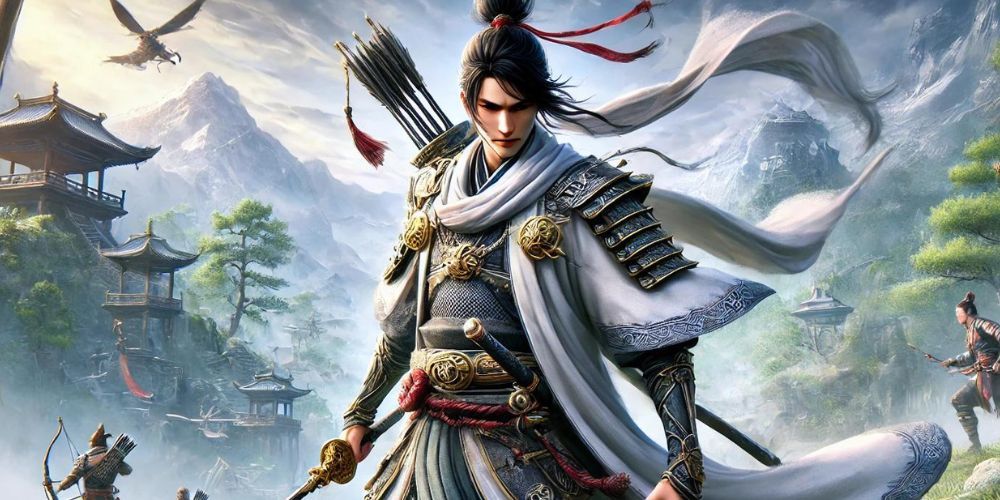
Naraka: Bladepoint offers a thrilling and immersive experience that is even more enjoyable when shared with friends. Understanding the steps to invite friends and enable crossplay can enhance your multiplayer sessions significantly. Follow this detailed guide to maximize your fun in Naraka: Bladepoint.
Step 1: Enable Crossplay Features
Before you can team up with friends from other platforms, you need to ensure that crossplay is enabled on your device. Here’s how you can do it:
- Access Settings: Launch Naraka: Bladepoint and go to the settings menu. You can find it by clicking on the gear icon in the main lobby.
- Enable Crossplay: Look for the crossplay options within the settings. Usually, it's under the ‘Gameplay’ or ‘General’ section. Make sure the crossplay feature is toggled on. This will allow you to connect with friends playing on different platforms.
Without crossplay enabled, you will be limited to playing only with friends who are on the same platform. Enabling this feature broadens your multiplayer possibilities, making the game more inclusive and exciting.
Step 2: Ensure You and Your Friends Are on the Same Server
Another important aspect of playing together in Naraka: Bladepoint is making sure you and your friends are on the same server. Here’s how to verify and set the correct server:
- Check Your Server: From the main lobby, you can see the server you are currently connected to. This information is usually displayed in the top right or bottom left corner of your screen.
- Change Server (if needed): If you find that you and your friends are on different servers, click on the server name. A list of available servers will appear, allowing you to select a common one for all parties involved.
Synchronizing your servers is critical because Naraka: Bladepoint does not support cross-server play. Ensuring this alignment will prevent any connectivity issues and streamline your gaming experience.
Step 3: Add Friends from Different Platforms
If your friends are playing on different platforms, you’ll need to add them using specific in-game features:
- Open Friends List: In the main lobby, look to the top right corner of your screen and locate the friends’ icon. This is typically represented by a person’s silhouette.
- Select Platform: After clicking the friends’ icon, a new menu will appear. Here, you’ll see options to view your friends' lists from Steam, Xbox, PlayStation, and other supported platforms. Select the appropriate logo for the platform of your friend.
- Send Friend Request: Browse through the list of potential friends or use the search function to find your friend’s username. Once you find them, click on their name and send a friend request. They will need to accept your request to proceed.
Once your friends have accepted your friend requests, you’re all set to invite them into your game lobby.
Step 4: Invite Friends to Your Party
With your friends added and crossplay enabled, here is how you can invite them to your party:
- Open Friends Menu: Back in the main lobby, click the friends’ icon once again.
- Select Friend: From your friends list, locate the friend you want to invite. This list should now display friends from different platforms seamlessly.
- Send Party Invitation: Click on your friend’s name and select the option to “Invite to Party.”
Your friend will receive an in-game notification to join your party. Once they accept, they will appear in your lobby. To make sure they’ve successfully joined, check the player box at the bottom left corner of the screen. Their name should be displayed there.
Step 5: Start the Game Together
Now that your friends are at your party, you’re ready to jump into the action together. Here’s what you need to do:
- Select Game Mode: Choose the game mode you wish to play. Whether it’s a ranked match, a casual showdown, or any special event, ensure all party members are prepared for the challenges ahead.
- Confirm Ready Status: Make sure all party members have clicked “Ready” within the lobby. You won’t be able to start the game unless everyone is ready.
- Start Match: Once everyone is ready, click the “Start Match” button. You and your friends will now enter the game together and can enjoy the cooperative gameplay that Naraka: Bladepoint offers.
Playing with friends adds an extra layer of strategy and fun to the game. Coordinating with your team and leveraging each player’s unique abilities can turn the tide in your favor and lead to memorable victories.
Troubleshooting Common Issues
Even with the best preparations, you might encounter some issues when trying to play with friends. Here’s how to troubleshoot common problems:
- Crossplay Disabled: Double-check the crossplay settings on all devices. If crossplay isn’t enabled, you won’t be able to form a cross-platform party.
- Different Servers: Verify that all party members are connected to the same server. Misaligned servers are a common cause of connection issues.
- Pending Friend Requests: Make sure all friend requests have been accepted. Unaccepted requests can prevent you from seeing your friends online.
- Game Updates: Ensure that all players have updated their game to the latest version. Inconsistent game versions can lead to compatibility problems.
If you continue to face difficulties, consider reaching out to Naraka: Bladepoint’s customer support. They can offer more personalized assistance to resolve your issues.
Conclusion
Playing with friends in Naraka: Bladepoint not only enhances the fun but also brings a sense of community to the game. By following these steps to enable crossplay, ensure same-server connectivity, and efficiently invite friends, you’ll be well on your way to shared adventures and thrilling battles. Now, gather your friends, strategize your moves, and dive into the exciting world of Naraka: Bladepoint!
Latest Articles
-
Digital Court Legends: A Modern Ode to Streetball
The experience of playing NBA The Run unfolds much like an afternoon of impromptu street basketball with friends. From the sheer thrill of sinking an unexpected basket to the camaraderie, the game captures the pulse of real life courts while forging its own digital legacy. Every match pulses with energy and creativity, blending nostalgic streetball memories with refined digital artistry. Players step into a realm where each dribble, shot, and pass is a testament to both individual flair and team synergy. The game invites enthusiasts to relive the personal triumphs and collective challenges of competitive basketball, all wrapped in a...

- Steve Nielsen
- 5 Jul 2026
-
Jodie Foster Unmasks the Formula: A Critical Look at the Film's Mechanical Narrative
The conversation around the recent Formula 1 film has taken an unexpected turn following a candid commentary by Jodie Foster. Her remarks, delivered during an industry event about the evolving business of cinema, suggest that the film’s style and delivery seem almost mechanical in nature.
Foster expressed her view that the movie adheres to a formulaic structure, one that could easily be compared to lessons learned in a classroom setting. She noted that every aspect—from the scripted dialogue to the predictable performances—mirrors what one might expect if the creative process were entirely dictated by artificial precision. According to her perspective, the...

- Lillian Young
- 5 Jul 2026
-
Capcom’s World Stage: Charting the Global Road to Street Fighter 6 Domination
The recent conclusion of a major tournament has "Pave the way for an exhilarating phase in" competitive Street Fighter 6 events. The latest announcements have brought attention to upcoming tournaments that will spotlight top players from around the world.
After Evo 2026 wrapped up over the weekend, There's growing excitement in anticipation of the upcoming event in Paris, France this summer. The Esports World Cup is scheduled for July and August, promising dynamic matchups in Capcom's latest fighting series. In addition, an event in November will further showcase an SF6 competition organized by the Esports Foundation.
At this point, 12 of the...
- Joshua Nelson
- 5 Jul 2026