Maximize Your Android Experience: Top 25 Expert Tips for Peak Performance
- 20 Dec 2023
Unlock the full potential of your Android phone with these expert tips designed to enhance functionality, boost productivity, and refine your user experience. From personalization to security, these suggestions will transform your device into a powerhouse of efficiency and enjoyment.
In the dynamic world of technology, smartphones are the swiss army knives of the digital age. With Android at the forefront of versatility, it's important to keep abreast of the tips and tricks that can make your smartphone smarter. This guide will lead you through 25 essential tips to optimize your Android device, ensuring it serves your needs with precision and efficiency.
1. Personalize Your Lock Screen
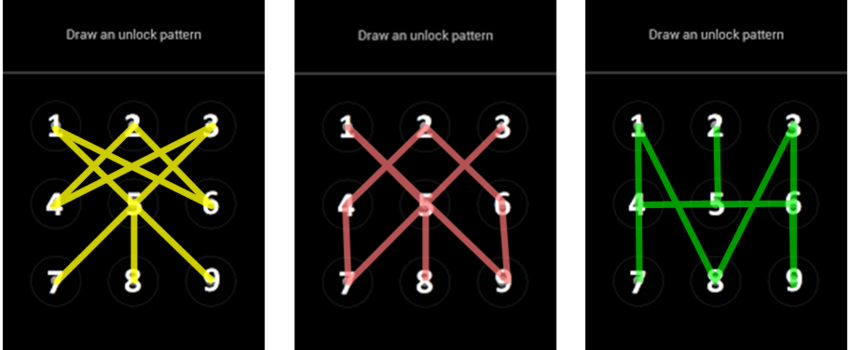
Start with the basics: your lock screen. A proper lock screen not only protects your privacy but also adds a personal touch to your device. Android offers a range of options on supported devices, such as PIN, pattern, and password locks, as well as more advanced biometric methods like fingerprint scanning and face recognition. Customize your lock screen settings by navigating to the Security or Lock Screen section in your device's settings. Remember, a secure lock screen is a cornerstone of features like Google Pay and factory reset protection.
2. Banish Bloatware
No one likes unnecessary clutter, especially when it comes to their phone. Bloatware can slow down your device and take up precious storage space. To declutter, go to your app settings, find the apps you don't use, and either disable or uninstall them. Disabling non-removable system apps will prevent them from running in the background and free up system resources for a more streamlined experience.
3. Locate Your Lost Phone
There's nothing more frantic than the search for a lost phone. Fortunately, Android's "Find My Device" feature offers peace of mind. Access it through any web browser, sign in with your Google account, and you can see your phone's location on a map. You can also make it ring, lock it, or erase its contents remotely, safeguarding your information if your phone falls into the wrong hands.
4. Embrace Material You Theming

With the roll-out of Android 12 and beyond, Material You brought a new level of personalization to the Android interface. This dynamic theme adapts to the colors of your wallpaper, changing the hues of your system and apps for a cohesive and aesthetically pleasing look. Each handset manufacturer may implement Material You differently, so explore your device's theme settings to see how you can make it your own.
5. Master Do Not Disturb
Do Not Disturb (DND) is a powerful tool to help you maintain focus or simply enjoy some peace and quiet. But it's not just an on/off switch. DND settings allow you to customize which notifications get through and when including the option for exceptions like calls from certain contacts. Take the time to configure DND to your lifestyle by going into the system's sound or notification settings.
6. Digital Wellbeing for a Balanced Life
It's easy to get lost in the digital world, but Android's Digital Wellbeing is here to help you find balance. Use this suite of tools to track and limit your app usage, ensuring you maintain a healthy relationship with your device. Set limits, monitor your habits, and use Wind Down mode to prepare for a restful sleep.
7. Back-Up Photos Automatically
Photos are the gateways to our memories, and losing them can be heartbreaking. Google Photos offers an effortless backup solution. Simply enable auto-backup in the app's settings to ensure your photos and videos are safely stored in the cloud, with options for storage quality based on your preferences and space requirements.
8. Convenient 'Hey Google' Voice Match
Google Assistant can be your hands-free helper with the simple command "Hey Google." Activate Voice Match in your Google Assistant settings, and after a brief voice recognition setup, you can summon assistance from anywhere, even when your phone's screen is off (on supported devices).
9. Experiment with Alternative Home Screens
Default home screens can be limiting, but alternatives like Nova Launcher and Action Launcher offer a wealth of customization options. These third-party launchers allow you to tailor your home screen's look and functionality, from custom gestures to icon packs and beyond. Find your preferred launcher in the Play Store and set it as your default for a personalized interface.
10. Take Control of Ad Preferences

As an advertising behemoth, Google tailors ads to your interests, but you have control over what data it uses. Head to your system settings, tap on the Google section, and adjust your Ad Preferences. You can disable ad personalization or fine-tune the topics that inform the ads you see, ensuring a more relevant (and less intrusive) experience.
11. Manage Apps on the Web Play Store
The Google Play Store's web interface is a handy tool for managing your apps. Use it to quickly install or update apps on your device, especially when setting up a new phone. You can also easily manage app permissions and view your app library from the comfort of your computer browser.
12. Utilize Notification History
Ever swipe away a notification only to realize you needed it? Android's Notification History logs your notifications so you can go back and see what you might have missed. Enable this feature in the notification settings, and you'll have a chronological list of dismissed alerts at your fingertips.
13. Embrace Swipe Input
Keyboard swiping, or glide typing, can dramatically increase the speed and ease of text entry. Most Android keyboard apps support this feature, including Google's Gboard and Microsoft's SwiftKey. Give it a try, and you may find that tapping out each letter becomes a thing of the past.
14. Use Power-Saving Modes
Longevity is key when it comes to your phone's battery life. Android's built-in power-saving modes can help you get the most out of a single charge. These settings can reduce background data usage, lower screen brightness, and limit performance to extend battery life. Customize them to activate automatically at a certain battery percentage for a worry-free experience.
15. Switch to System Dark Theme
A dark theme not only looks cool but can also be easier on your eyes and better for your battery (on devices with OLED screens). Most Android devices now offer a system-wide dark theme that darkens the interface, compatible apps, and sometimes even your wallpaper. Access the theme settings to enable it, or schedule it to activate at certain times of the day.
16. Review and Change Default Apps
Android allows you to choose default apps for different actions like browsing the web or launching the home screen. These defaults are not set in stone. If you find another app that better fits your needs, go to the Apps section in the settings to change or clear your default app selections.
17. Set Up Emergency SOS
In an emergency, quick action can be critical. Android's Emergency SOS feature can call emergency services and share your location with predefined contacts. Configure this feature in the Safety and Emergency section of the settings, ensuring that help is just a few button presses away.
18. Smart Rotation Lock
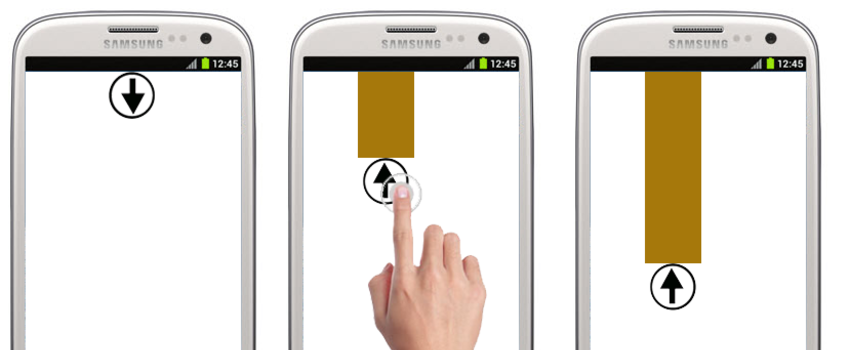
Screen rotation can be a nuisance when unintentional, but Android's smart rotation lock gives you control. By disabling auto-rotate and enabling the rotation button that appears on the navigation bar when the device is turned, you can manually switch between portrait and landscape mode without digging through the settings.
19. Simplify Logins with Autofill
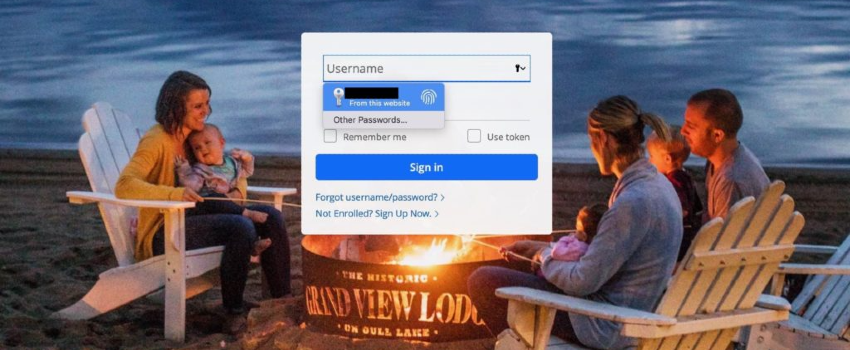
Remembering passwords is a hassle, but with Android's autofill service, you don't have to. Link it with a password manager or use Google's built-in service by going into your system settings. This will streamline logging into apps and websites, saving you time and keeping your accounts secure.
20. Mirror Your Display with Screencasting
Share your phone's display with a larger audience using screencasting. Cast to a Chromecast or Android TV by tapping the Cast icon in the Quick Settings. This feature is perfect for presentations, sharing photos, or even streaming content that isn't natively supported by your streaming device.
21. Fine-Tune Notifications with Channels
Android's notification channels provide a way to manage notifications more granularly. This feature allows you to customize how different types of notifications behave—whether they make a sound, vibrate, or show up silently. Access these settings by long-pressing a notification or through the app's info page.
22. Tailor Your Quick Settings
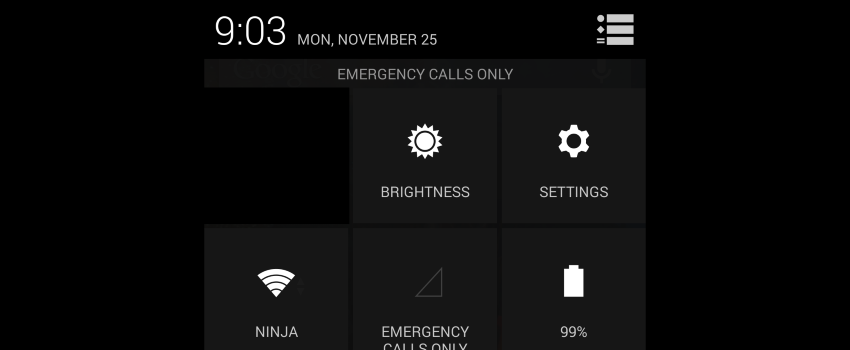
The Quick Settings panel is your shortcut to frequently used toggles like Wi-Fi, Bluetooth, and Airplane Mode. Customize which toggles show up and in what order by tapping the edit button in the Quick Settings panel. Make sure the settings you use most are front and center for easy access.
23. Secure Your Data with Factory Reset Protection
Android's factory reset protection is a security measure that requires your Google account credentials after a factory reset, making it harder for thieves to use or sell your device. Make sure this feature is enabled by having a secure lock screen and a Google account added to your phone. Before selling or giving away your phone, remember to disable the feature by removing all Google accounts and resetting the lock screen security.
24. Sideload Apps Safely
While the Google Play Store has an extensive app library, you can also sideload apps from trusted sources. This allows you to access apps not available in the Play Store due to regional restrictions or staged rollouts. Ensure you grant permission to install from unknown sources only for individual apps from trusted sources and disable the permission afterward for security.
25. Save Offline Maps for Navigation Anywhere
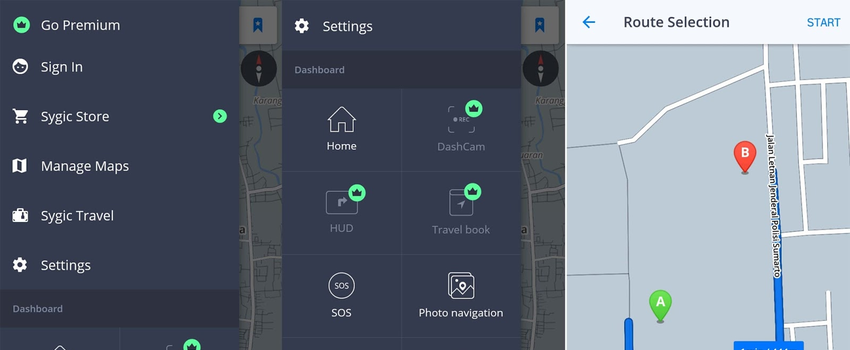
Don't be left stranded without a map due to a lack of data coverage. Google Maps lets you save maps offline for navigation anywhere. Select the area you want in Google Maps, and download it for offline use. These maps will include essential details like streets and points of interest, and you can even get turn-by-turn directions without an Internet connection.
Conclusion
Your Android device is a marvel of modern technology, brimming with potential just waiting to be unlocked. By implementing these 25 tips, you'll not only make your phone more efficient and enjoyable to use, but you'll also harness the full capability of the Android system. Whether it's through personalization, improved security, or enhanced functionality, these tips will ensure that your smartphone experience is truly top-tier. Embrace the power of Android and make your device work for you in ways you never thought possible.
Latest Articles
-
Digital Court Legends: A Modern Ode to Streetball
The experience of playing NBA The Run unfolds much like an afternoon of impromptu street basketball with friends. From the sheer thrill of sinking an unexpected basket to the camaraderie, the game captures the pulse of real life courts while forging its own digital legacy. Every match pulses with energy and creativity, blending nostalgic streetball memories with refined digital artistry. Players step into a realm where each dribble, shot, and pass is a testament to both individual flair and team synergy. The game invites enthusiasts to relive the personal triumphs and collective challenges of competitive basketball, all wrapped in a...

- Steve Nielsen
- 5 Jul 2026
-
Jodie Foster Unmasks the Formula: A Critical Look at the Film's Mechanical Narrative
The conversation around the recent Formula 1 film has taken an unexpected turn following a candid commentary by Jodie Foster. Her remarks, delivered during an industry event about the evolving business of cinema, suggest that the film’s style and delivery seem almost mechanical in nature.
Foster expressed her view that the movie adheres to a formulaic structure, one that could easily be compared to lessons learned in a classroom setting. She noted that every aspect—from the scripted dialogue to the predictable performances—mirrors what one might expect if the creative process were entirely dictated by artificial precision. According to her perspective, the...

- Lillian Young
- 5 Jul 2026
-
Capcom’s World Stage: Charting the Global Road to Street Fighter 6 Domination
The recent conclusion of a major tournament has "Pave the way for an exhilarating phase in" competitive Street Fighter 6 events. The latest announcements have brought attention to upcoming tournaments that will spotlight top players from around the world.
After Evo 2026 wrapped up over the weekend, There's growing excitement in anticipation of the upcoming event in Paris, France this summer. The Esports World Cup is scheduled for July and August, promising dynamic matchups in Capcom's latest fighting series. In addition, an event in November will further showcase an SF6 competition organized by the Esports Foundation.
At this point, 12 of the...

- Joshua Nelson
- 5 Jul 2026